How to record the front and back cameras as separate videos on iPhone
Updated November 2026
A video with both cameras in one frame is ready to share, but it fixes the layout for good. If you want to edit later, cutting to your face for a reaction and back to the scene, you need each camera as its own video as well. Here is how to get all three from one recording.
The short answer
Use a dual-camera app that keeps each camera's own file. Dual Camera - Front & Back Pro, by SummerCloude, records both cameras at once. In a layout with both cameras, it saves three videos from one recording:
- the combined video, with your layout and effects;
- the front camera on its own;
- the back camera on its own.
It does this by default, on iPhone XS or newer with iOS 17 or later. It is bought once, with no subscription, no watermark and no account.
Step by step
- Open Dual Camera - Front & Back Pro, tap Effects and choose a layout with both cameras: picture-in-picture, split left/right or split top/bottom.
- In the same Effects panel, under Capture, Save separate angles is on unless you have turned it off. Tap Done.
- Tap the red button to record. Tap again to pause, and again to carry on.
- Tap Save. Three videos go to Photos.
What you get
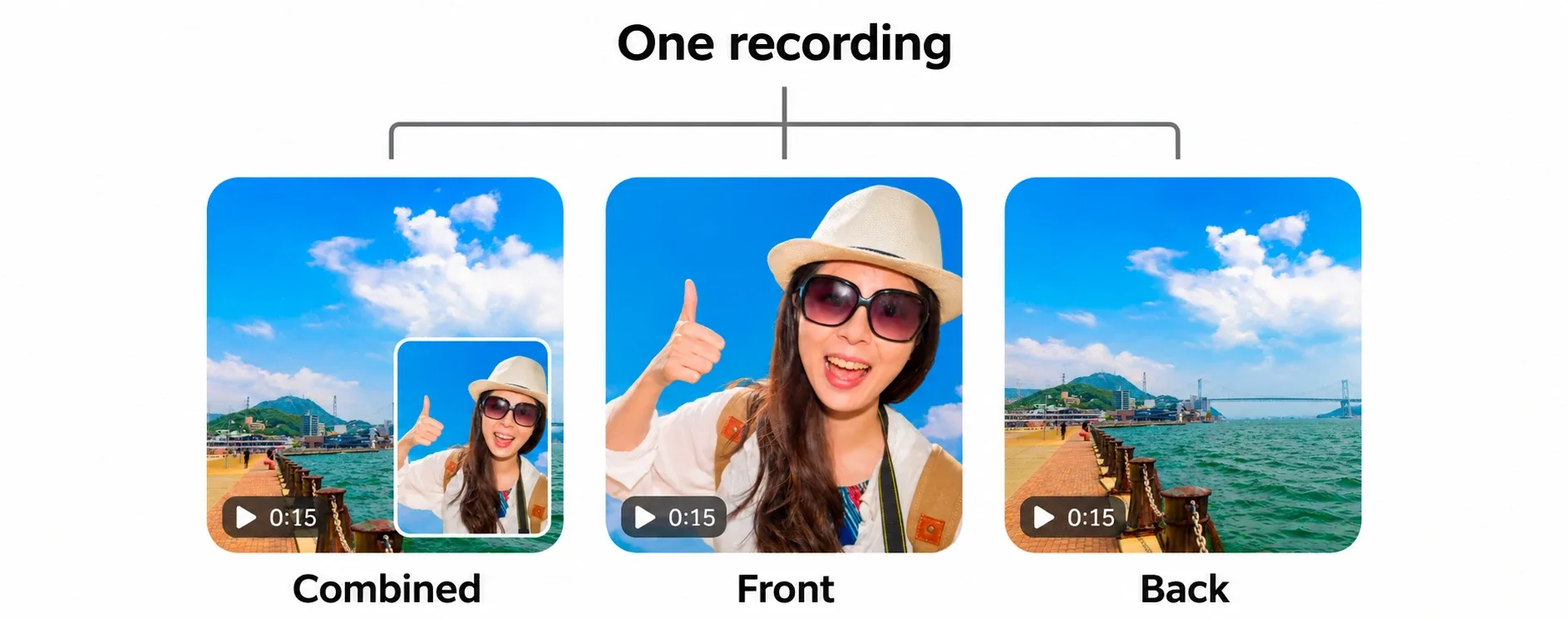
- The combined video, exactly as you saw it, with your layout, filter and effects.
- The front camera on its own.
- The back camera on its own.
The three cover the same moments and each has the sound. The two camera
files are the plain camera picture, without filters, beauty or background
effects, which leaves you free to grade them as you like in your editor.
Their names end in _combined, _front and
_back, so you can tell them apart in Photos and in an editing app.
Photo captures save the same three: each photo with both cameras also
saves the front and back pictures on their own.
Why keep each camera separately?
The combined video is ready to share. The separate videos give you more choice when you edit:
- Travel: cut between the view and your reaction to it.
- Reactions: keep your face full screen for the moments that matter, and the scene for the rest.
- Product demos: switch between the product and you explaining it.
- A new layout: put the two angles side by side, or one over the other, in your editor.
- Grading: crop and adjust the color of each camera on its own.
You can post the combined video now and keep the two camera videos for later, without filming the moment again.
Watch each angle before you edit
Tap the thumbnail of your last capture to open it in the app's Library. The first time, the app explains why it needs Photos access, then iOS asks you. Switch between Both, Front and Back while it plays; it stays at the same moment, so you can compare the angles. Share sends whichever one is on screen. The grid button shows every capture saved with version 1.5 or later.
Tips
Keep the whole take in two-camera layouts
You can switch layouts between clips, but if any clip in a take uses a single camera, that take saves only the combined video.
Leave room on your iPhone
Each recording saves three videos instead of one, so it uses more storage. If space is short, or you never edit, turn Save separate angles off in Effects.
Know the limits
Dual Camera records at 1080p and 30 frames per second. It does not record in 4K.
Common problems
I only got one video
Either Save separate angles was off, or a clip in that take used a single camera. Check the setting in Effects, under Capture, before your next recording.
I can't change the setting
It is locked while you have unsaved clips. Effects says "Save or discard the current recording to change this." Save or delete your clips first.
The setting is missing from Effects
It only appears in layouts with both cameras. In the single-camera layout there is only one camera, so there is nothing to separate.
Record both cameras into one video or photo on iPhone XS or newer, and keep each camera on its own for editing later. Bought once, no subscription. No watermark, no account, and nothing is sent to us.
Download on the App Store →More: Dual Camera overview · How to record both cameras · Which iPhones support it · iPhone 17 Dual Capture vs an app