
Get to know Easy Keyboard.
Typing
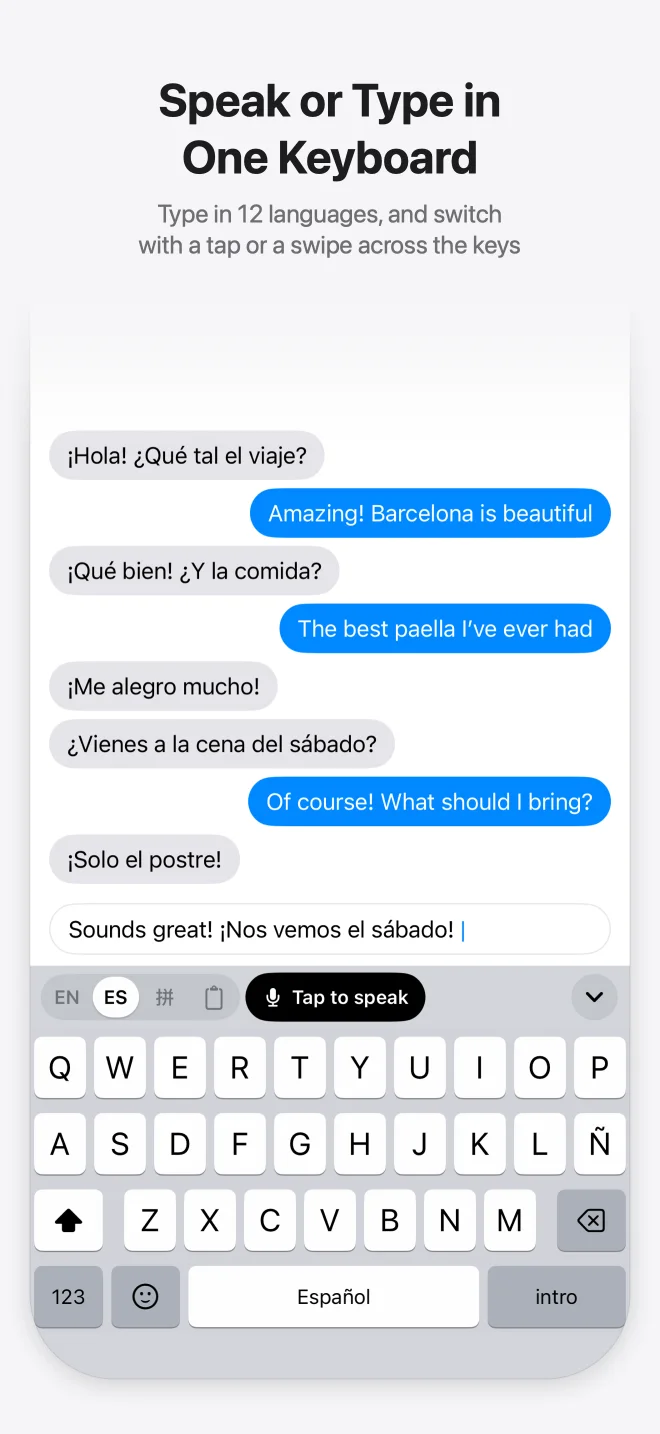
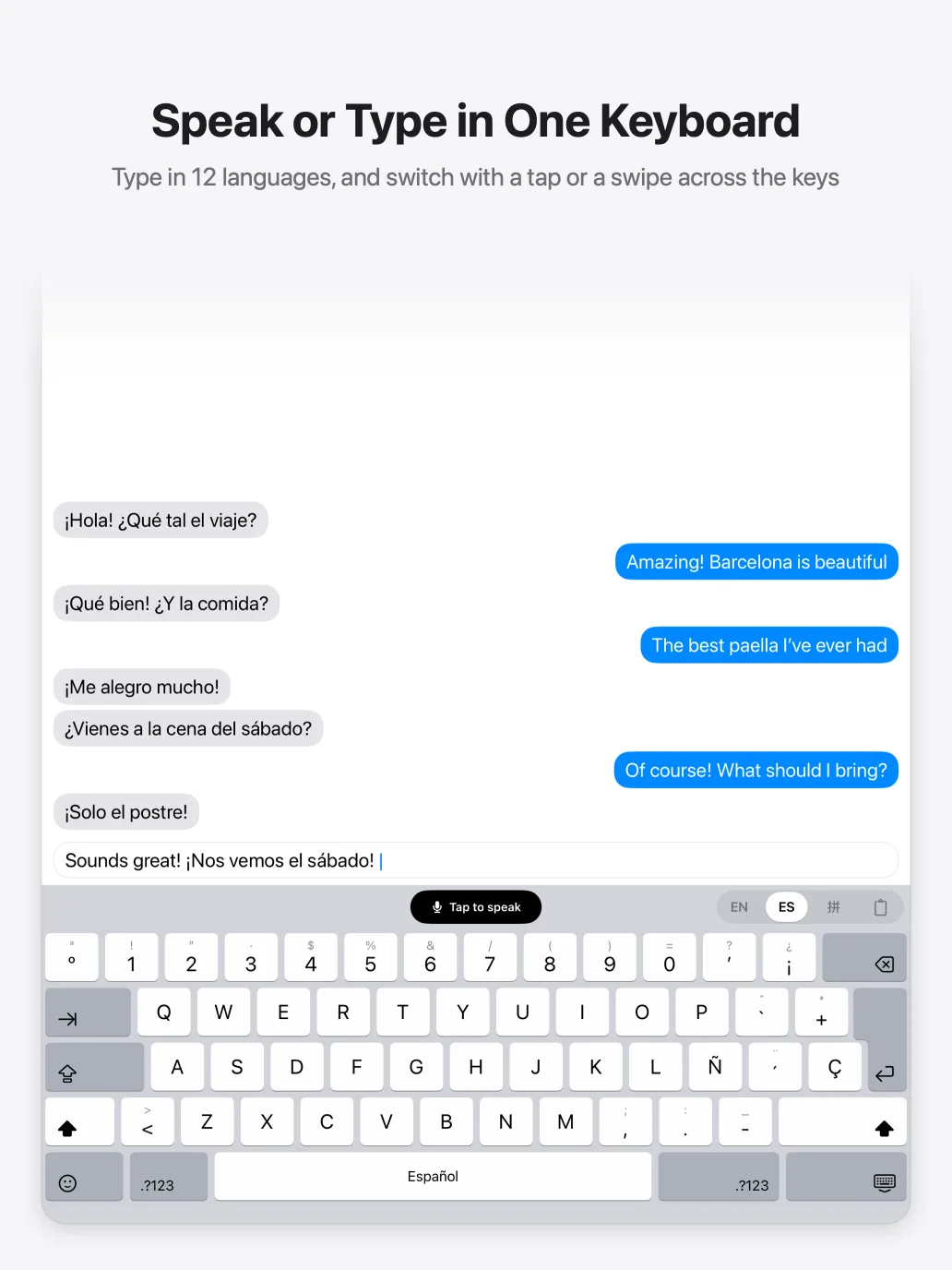
A multilingual keyboard: 12 languages, switched with a tap or a swipe.
If your chats move between languages, your keyboard should too. Turn on the keyboards you use, put them in the order you like, and change language from the bar above the keys. Each one is laid out like Apple's own keyboard for that language, and typing is free in all of them.
- English
- Chinese Simplified (Pinyin)
- Chinese Traditional (Pinyin)
- Chinese Traditional (Zhuyin)
- Japanese (kana)
- Japanese (romaji)
- Spanish
- French (AZERTY)
- Portuguese (Brazil)
- German (QWERTZ)
- Indonesian
- Turkish (Q)
- Russian
- Arabic
- Hindi
How do I switch languages on the keyboard?
Tap a language in the bar above the keys, or swipe sideways across the keys. On the Japanese kana keyboard, where sliding picks letters, tap the language.
Only the languages you use.
It starts with the keyboards for the languages set on your device. Choose and reorder them in the app; the keyboard follows your choice once Allow Full Access is on.
Chinese and Japanese.
Word choices appear above the keys as you type Pinyin, Zhuyin, kana or romaji. Japanese kana is flick on iPhone and the fifty-sounds keyboard on iPad.
Suggestions and accents.
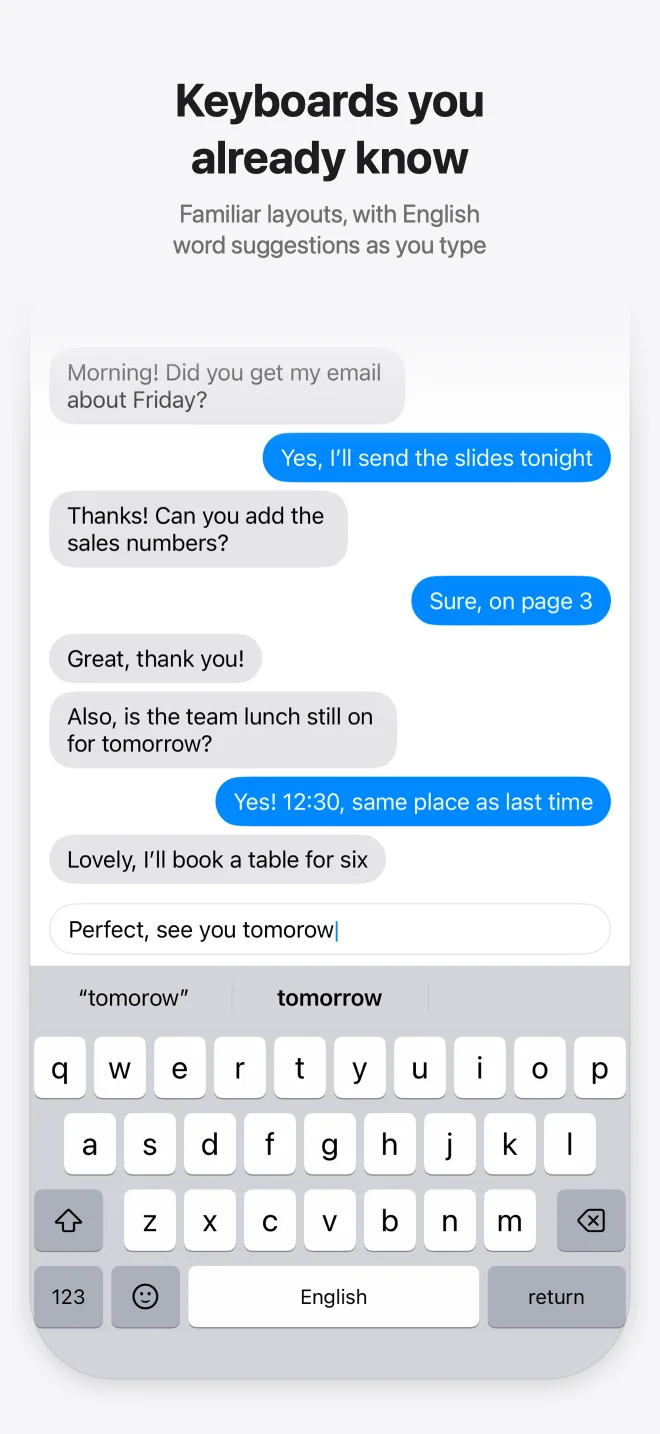
Words are suggested above the keys as you type, with autocorrect in English. Touch and hold a letter for its accents, and hold the space bar to move the cursor.
Emoji you can search for.
Look for an emoji by a word, in any of the 12 languages.
On iPad, too.
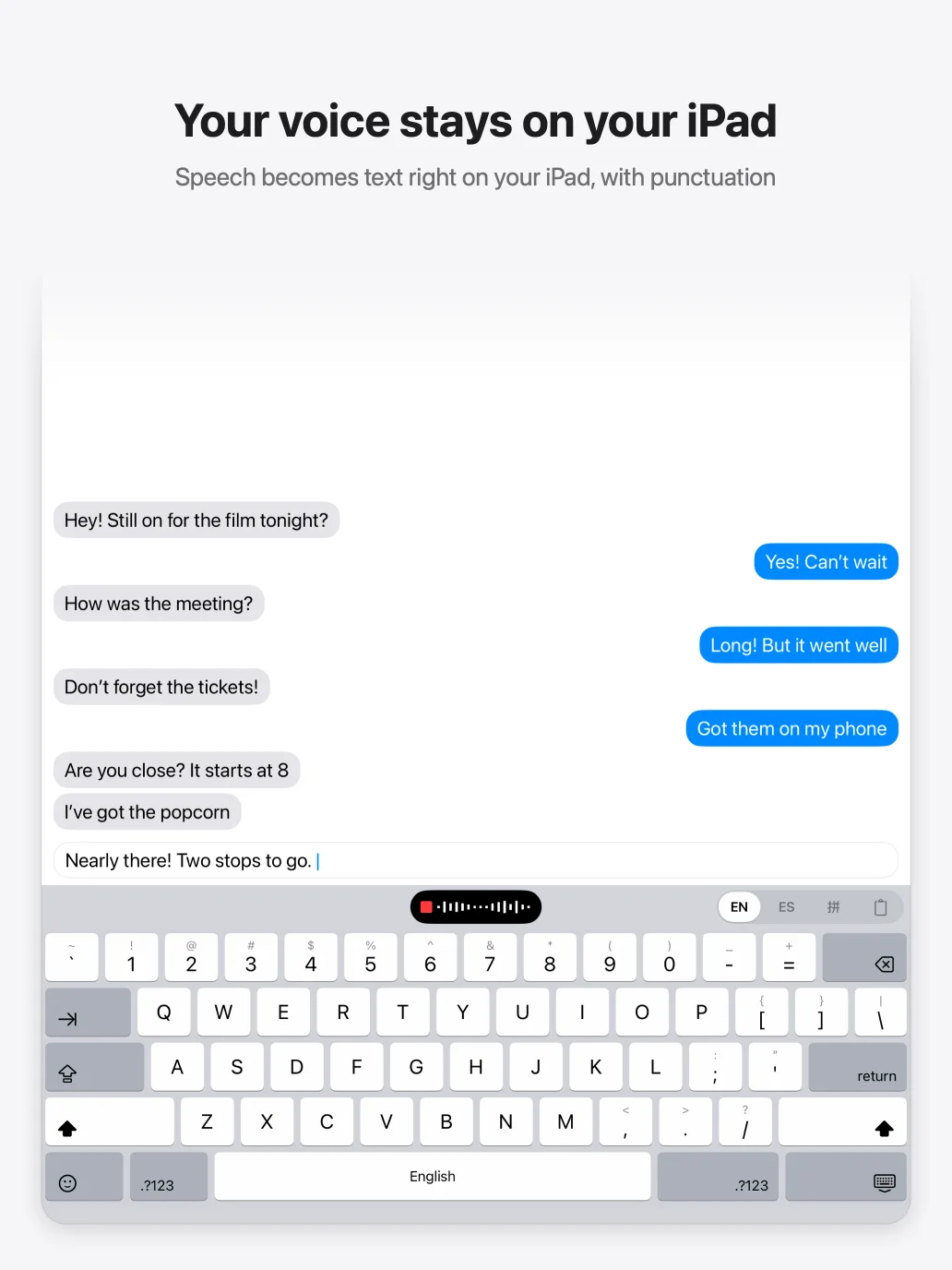
iPad gets iPad keys, in portrait and in landscape.
Voice
Voice typing and dictation: speech to text on your device.
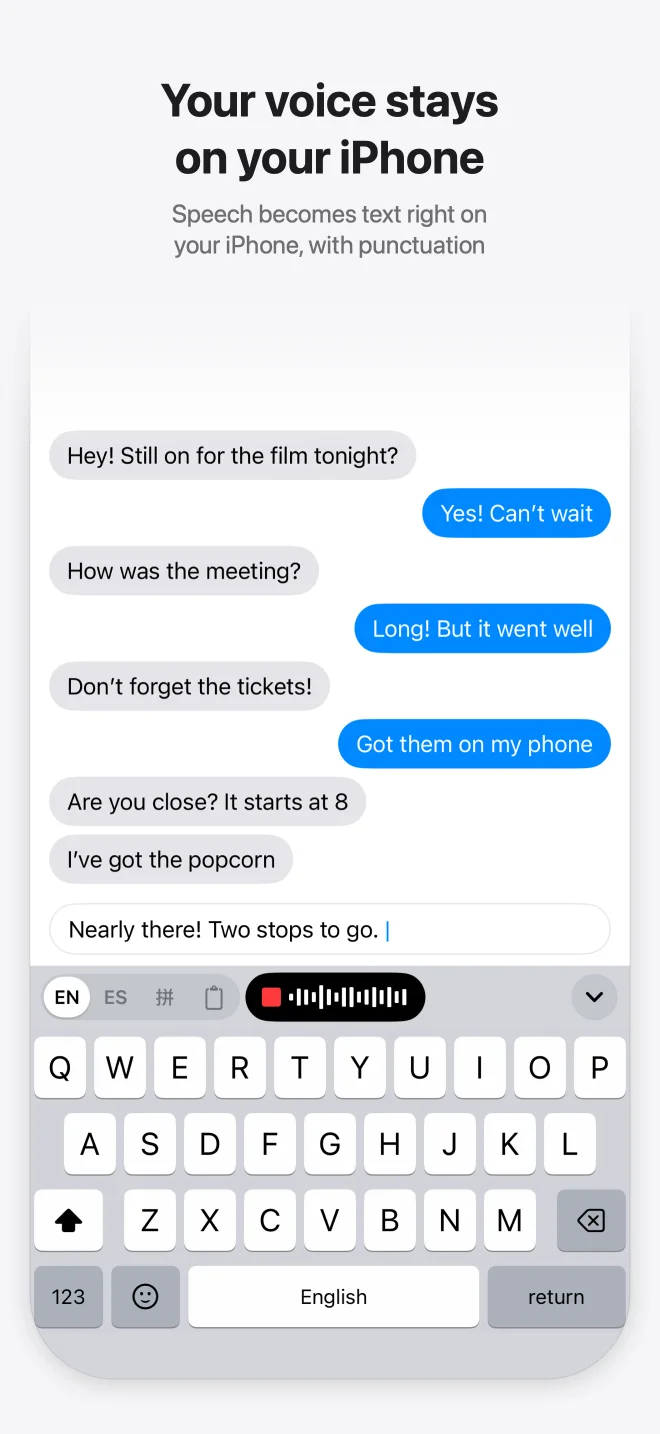
Tap "Tap to speak", talk, and tap the sound wave when you are done. Your words appear in the text field you are typing in. Your voice is turned into text on your iPhone or iPad, so it works offline.
What do I need for voice?
An iPhone or iPad that runs voice, Allow Full Access turned on in Settings, microphone access, and the Easy Keyboard app opened to turn voice on. The app shows you how.
Which iPhones and iPads run voice?
Voice works on iPhone 13 or newer, iPhone SE (3rd generation), and iPads with an A15 or newer chip or an M-series chip.
Open the app to turn voice on.
The Easy Keyboard app does the listening, so open it to turn voice on. It stays on until you swipe the app away in the App Switcher. iOS can also turn voice off, for example after a phone call; "Tap to speak" then opens the app, and you go back to where you were typing.
The microphone is muted until you tap.
While voice is on, the app keeps the microphone open. Between dictations it is muted, and iOS shows no microphone indicator. Easy Keyboard keeps sound only from your tap on "Tap to speak" until the dictation ends. The sound stays in memory until it is written out as text, and is then discarded.
The voice model is included.
It comes inside the app, which makes the app a large download, with nothing more to fetch afterward. Getting it ready takes a few minutes, once after each install, app update or iOS update.
Written in your own languages.
Your speech is written in one of your own languages, with punctuation in most of them. Accuracy differs by language: see Which languages can I speak?
Paste
Text you use often, in the keyboard.
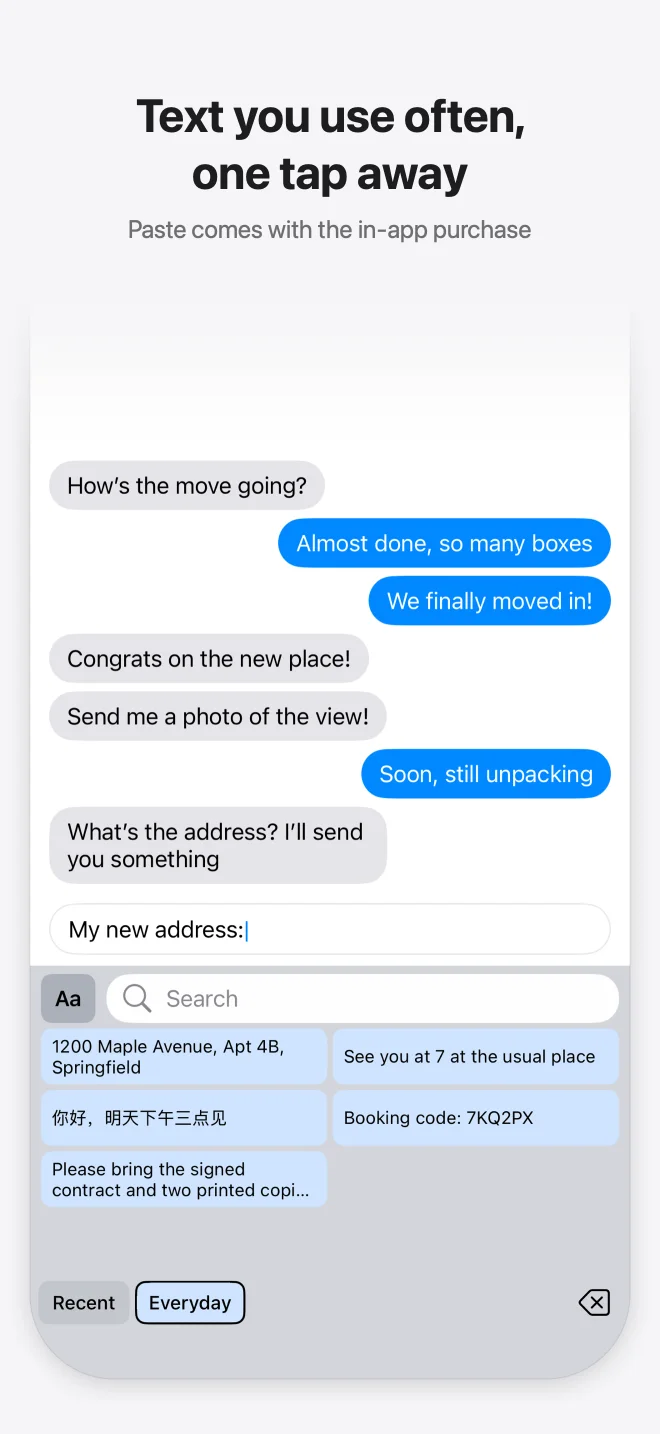
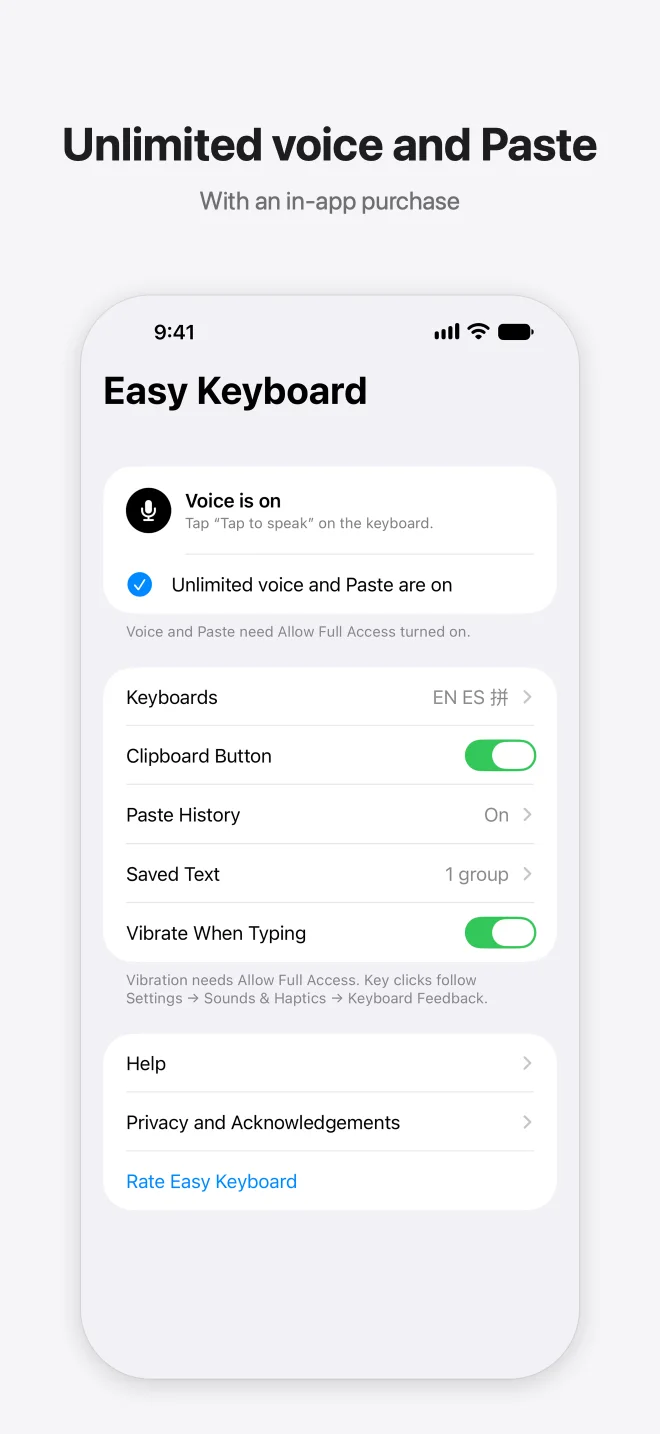
Tap the clipboard button beside your languages to open the paste panel, then tap a text to type it. Paste comes with the one-time purchase and needs Allow Full Access.
Saved Text.
Keep text you use often, like your address, in groups you name. You add it in the app, and it stays until you delete it.
Paste History.
Off until you turn it on. Your latest copy is kept when you open the paste panel, and new copies while the panel is open, for an hour, a day, a week or a month, up to the 50 newest. Pin the ones you want to keep. iOS may ask you to allow each copy.
Much of what looks secret is left out.
Paste History doesn't keep text an app marks as secret in a way it recognizes, or text that looks like a password, a card number or a code of 4 to 7 digits on its own. Some passwords and codes can still get through; you can delete them in the paste panel.
Where your text is kept.
On your device, and never sent to us. Paste History is left out of backups. Saved Text is in your own iCloud or computer backups, like your other app data, so keep passwords in a password app.
Privacy
A private keyboard: nothing you type or say reaches us.
Easy Keyboard has no server, and the keyboard contains no network code. There is no account to make, and the app collects no data.
What is Allow Full Access for?
Easy Keyboard uses it for voice (including how many free words are left), for Paste History and Saved Text, for the choices you make in the app, to tell the app the keyboard has been added, and to vibrate as you type on iPhone. You can turn it off in Settings at any time.
Typing works without it.
Add the keyboard and you can type, with the keyboards for your device's languages.
Names and text replacements.
iOS gives keyboards your text replacements and the first and last names of your contacts. Easy Keyboard uses them only to make your replacements and to capitalize those names, keeps them in memory only, and sends them nowhere.
What the app connects to.
The App Store, to show the price and to buy, restore and check the purchase. The links in the app open in your browser or the App Store.
Crash reports.
If you have turned on Share With App Developers in iOS, Apple may send us crash reports and usage statistics that don't identify you, as it does for every app.
Price
Free to type, with one purchase, paid once.
Free.
Typing in all 15 keyboards, and your first 500 voice words.
Easy Keyboard Unlock.
One in-app purchase, paid once, adds unlimited voice and Paste (Paste History and Saved Text), on your iPhones and iPads with the same Apple Account. It works with Family Sharing. On a device too old for voice, it adds Paste there.
The app shows the price for your country before you buy.
Frequently asked questions
What does Easy Keyboard cost?
It is free to download, and typing in all 15 keyboards is free. Your first 500 voice words are free too. One in-app purchase, Easy Keyboard Unlock, is paid once and adds unlimited voice and Paste (Paste History and Saved Text). The app shows the price for your country before you buy.
Is it a subscription?
No. There is one purchase, paid once, and nothing to renew.
How do the 500 free voice words work?
They are 500 words in total, to use whenever you like; a new day or month doesn't add more. Two Chinese or three Japanese characters count as one word. When they are used up, typing works as always.
Which devices can run it?
An iPhone with iOS 26 or later, or an iPad with iPadOS 26 or later. Voice works on iPhone 13 or newer, iPhone SE (3rd generation), and iPads with an A15 or newer chip or an M-series chip. On an older iPhone or iPad you can type, and the purchase adds Paste there.
Which languages can I type in?
English, Chinese (Simplified and Traditional), Japanese, Spanish, French, Portuguese, German, Indonesian, Turkish, Russian, Arabic and Hindi. That is 12 languages on 15 keyboards, because Chinese has three and Japanese has two.
Which languages can I speak?
Voice writes what you say in one of your own languages: the ones set on your device, and the keyboards you have added. How well it does differs from language to language. We don't promise Hindi voice, which got many words wrong in our tests, and in Arabic the text comes without punctuation. The 500 free words let you check it with your own voice before you buy.
Why does voice need the app to be opened?
The Easy Keyboard app does the listening for its keyboard. Opening the app turns voice on, and it stays on until you swipe the app away in the App Switcher; iOS can also turn it off, for example after a phone call or a restart. If voice is off, tapping "Tap to speak" opens the app for you.
Does it need Allow Full Access?
Not for typing. Voice, Paste, the keyboards you choose in the app and vibration as you type on iPhone need Allow Full Access, which you turn on in Settings; the app shows you how. The keyboard contains no network code, so with or without Full Access it sends nothing over the internet.
Does it work offline?
Yes, for typing and for voice. The voice model comes inside the app, so there is nothing more to download after you install it. Buying, restoring and checking the purchase go through the App Store.
Do you get to see what I type or say?
No. Easy Keyboard has no server, no account and no analytics, and nothing you type or say ever reaches us. Your words go into the text field you are typing in. The privacy policy has the details.
Does the purchase cover my other devices and my family?
It covers your iPhones and iPads signed in to the same Apple Account; tap Restore Purchase there. It also works with Family Sharing, when Purchase Sharing is on in your family group.
How do I get help?
Easy Keyboard Support covers the common questions, and you can email admin@summercloude.com.
Who made Easy Keyboard
Easy Keyboard (on the App Store as Easy Keyboard: AI Voice Typing) is made by SummerCloude, a small company registered in Singapore, for people who type in more than one language.
Two things to know first. Autocorrect is for English. Password fields, and apps that choose to, use Apple's keyboard.
You can read the privacy policy and Easy Keyboard Support before you install anything.